
Manage Your Own Video: A Small Fleet Owner’s Guide
Running a five-van operation means every minute matters. A customer complaint, collision, or driver question can quickly become an owner’s problem.
Dash camera footage helps provide answers. However, video only delivers value when fleet owners can access it quickly and use it with confidence.
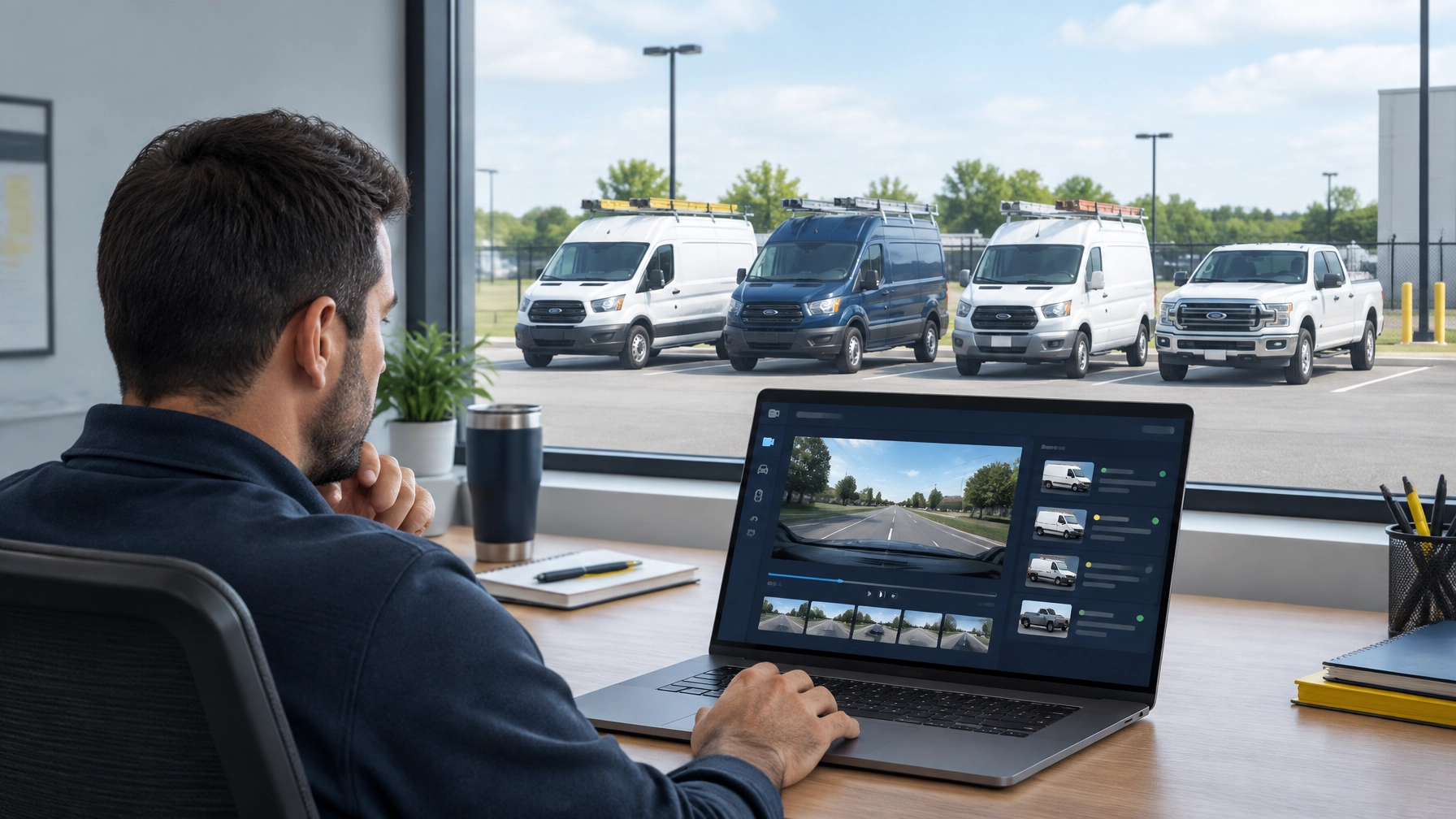
A self-serve video platform gives small businesses direct control. Fleet owners can log in, find a clip, download it, share it with an adjuster or customer, and use it for driver coaching without waiting for a vendor to retrieve the footage.
Safety Track’s unlimited video plan includes unlimited viewing and unlimited downloads for $99.95 per month. That predictable access helps small fleets use their camera system as a daily safety and operations tool.
Why Small Fleets Need Direct Video Access
Large transportation companies may have dedicated claims departments and safety teams. Small businesses often do not. The owner, dispatcher, office manager, or operations lead may handle every video request.
Waiting for a provider to locate footage creates unnecessary delays. A manager may need to submit a request, describe the vehicle and time of the event, and wait for a response. If the first clip does not show enough context, the process may need to start again.
Direct access gives the business more control. Authorized users can search available footage, review the event, and download what they need.
Fleet video can help a small business:
- Confirm what happened during a collision
- Respond to a customer complaint
- Support an insurance claim
- Protect a driver from an inaccurate allegation
- Review a disputed delivery or service call
- Identify unsafe driving behavior
- Coach drivers with specific examples
Safety Track’s video telematics solutions connect video with fleet information such as vehicle activity and location. This gives owners more context than a camera file alone.
Step 1: Log In and Choose the Correct Vehicle
The process starts with the fleet video dashboard. An authorized user logs in through the web platform or supported mobile access.
Use an individual account whenever possible. Avoid sharing one password among several employees. Individual logins make it easier to control access and understand who viewed or downloaded footage.
After logging in:
- Open the video, camera, or safety section.
- Select the vehicle involved.
- Confirm the vehicle number or name.
- Choose the date and approximate time.
- Select the event or trip connected to the footage.
For a five-van fleet, clear vehicle names make this process easier. A business might label vehicles by unit number, license plate ending, or service type. Consistent naming prevents an owner from selecting the wrong van.
The exact dashboard layout may vary by account and system configuration. The basic workflow remains simple: choose the vehicle, choose the time, and review the available video.
Step 2: Find a Clip by Date, Vehicle, or Event
Most video telematics systems organize footage around events and trips. Owners can usually search using one or more of these details:
- Vehicle
- Driver
- Date
- Time range
- Event type
- Route or trip
- Camera view
Event-based searches work well after hard braking, a collision, speeding alert, lane departure, or other safety event. If no alert was created, trip history or a time-based search can help locate the correct footage.
Start with the narrowest search possible. If the event happened at 2:15 p.m., search within a short window around that time. If the exact time is unknown, expand the range gradually.

Review the vehicle and date before playing the clip. This simple check prevents confusion when several vans operate in the same area.
A useful search process looks like this:
- Select the vehicle.
- Enter the date.
- Set a time range.
- Choose the event type if available.
- Open the matching clip.
- Watch the footage before and after the event.
The surrounding footage matters. A hard-braking alert may show a vehicle cutting into the van’s path. A customer complaint may look different after reviewing the full approach to the job site.
Step 3: Review the Full Context
Do not rely on the alert label alone. The label identifies a possible event. The video shows what actually happened.
Watch enough footage to understand:
- What happened before the event
- How the driver responded
- What other vehicles were doing
- Whether traffic or weather affected the situation
- What happened immediately afterward
- Whether the event was isolated or part of a pattern
A forward-facing view can show traffic and road conditions. A driver-facing view can provide additional context about distraction, attention, or fatigue indicators when that camera is part of the system.
Safety Track fleet camera systems can be configured around the needs of different businesses. A plumbing company may prioritize forward-facing and driver-facing views. A delivery business may also need rear or interior visibility.
The goal is not to watch every minute of every route. The goal is to access the right footage when a business decision depends on accurate information.
Step 4: Download the Video
Once the correct footage is found, download it for the intended business purpose.
Look for a download or export option in the video player. Depending on the system configuration, the user may be able to select:
- One camera view or multiple views
- A specific time range
- Video with available date, time, speed, or location information
- A standard file format such as MP4
Use a consistent file name after downloading. For example:
Van-03_2026-09-22_1415_customer-claim.mp4
A clear file name makes later retrieval easier. Store the original download in a secure business folder. Create working copies when editing or adding notes.
The $99.95 per month unlimited video plan includes unlimited viewing and unlimited downloads. That means a small fleet does not have to ration access or decide whether a second download is worth an additional fee.
Unlimited downloads can support:
- Insurance claims
- Incident reports
- Customer communication
- Driver coaching
- Internal safety meetings
- Legal or compliance records
- Training examples
The footage belongs in the business workflow. It should not remain locked inside a vendor request process.
Step 5: Share Footage Securely
Fleet owners may need to share a clip with an insurance adjuster, customer, attorney, law enforcement agency, or internal manager.
Share only the footage needed for the specific purpose. Before sending a file, confirm that it shows the correct vehicle, date, and event.
Use a secure method whenever possible. An insurer’s claims portal or secure file-sharing link is preferable to posting a video publicly or sending sensitive footage through an informal channel.
Include basic context with the file:
- Vehicle number
- Date and time
- Location, if known
- Driver or route information
- Event type
- A short description of what the clip shows

For a customer complaint, a short, relevant clip may be enough. A customer usually does not need unrelated footage from the entire route.
For an insurance claim, preserve the original file and keep a record of when it was shared and with whom. If a serious incident may lead to legal action, the business should follow its insurer’s or attorney’s instructions for preserving evidence.
Safety Track’s real-time monitoring tools provide another way to maintain visibility while vehicles are operating. Live access and stored video serve different purposes, but both help owners make decisions using current information.
Step 6: Use Video for Driver Coaching
Video coaching works best when it is specific, brief, and fair.
Avoid using footage as a punishment for every minor event. Review patterns instead. A single hard-braking event may have a reasonable explanation. Repeated tailgating, speeding, or distracted driving requires a focused conversation.
A simple coaching session can follow this format:
- Show the clip.
- Ask the driver what happened.
- Identify the specific behavior.
- Explain the safety risk.
- Agree on the safer behavior.
- Record the coaching conversation.
Keep most sessions to five or fifteen minutes. Focus on one or two behaviors at a time.
Useful coaching topics include:
- Following distance
- Hard braking
- Speed management
- Phone distraction
- Lane changes
- Safe turns
- Backing procedures
- Fatigue warning signs
- Work-zone awareness

Positive examples matter, too. Owners can share footage of smooth braking, safe hazard response, and careful backing. Recognition reinforces the behavior the business wants to see.
When drivers understand that video protects them as well as the company, the system becomes easier to manage. Footage provides facts instead of assumptions. It supports accountability while giving drivers a fair opportunity to explain the situation.
Create a Simple Five-Van Video Routine
A small fleet does not need a large safety department to manage video effectively. It needs a repeatable routine.
After an incident
- Identify the vehicle and approximate time.
- Locate the footage immediately.
- Download the relevant clip.
- Preserve the original file.
- Notify the insurer or other required parties.
- Record who received the footage.
Each week
- Review new safety events.
- Look for repeated behaviors.
- Select only the most useful coaching clips.
- Recognize positive driving examples.
- Confirm that camera systems are operating properly.
Each month
- Review access permissions.
- Check that vehicle names remain accurate.
- Organize saved footage.
- Remove routine clips that are no longer needed, according to company policy.
- Review whether the system is supporting claims, coaching, and customer service.
A basic written policy should explain who can access footage, how it may be used, and how long important clips should be retained. Businesses should also follow applicable privacy, employment, insurance, and evidence-preservation requirements.
Take Control of Fleet Video
Managing dash camera footage does not need to be complicated. A small fleet owner can follow a clear process:
- Log in.
- Select the vehicle and date.
- Find the event or time range.
- Review the surrounding footage.
- Download the correct clip.
- Share it securely.
- Use it for a focused coaching conversation.
The main advantage is control. Owners should not have to wait for a vendor to retrieve footage from vehicles operating on their behalf.
Safety Track’s $99.95 per month unlimited video plan includes unlimited viewing and unlimited downloads. It gives small businesses a practical way to use footage for claims, customer communication, driver coaching, and everyday fleet safety.
Contact Safety Track to learn how a custom video telematics solution can fit a five-van operation.

Tyler Schneider is the IT Director at Safety Track, overseeing the company’s technological infrastructure and innovations. With a strong background in information technology and systems management, Tyler ensures that Safety Track stays at the forefront of tech solutions in fleet management. His strategic expertise supports the seamless integration of technology across the company’s operations.